
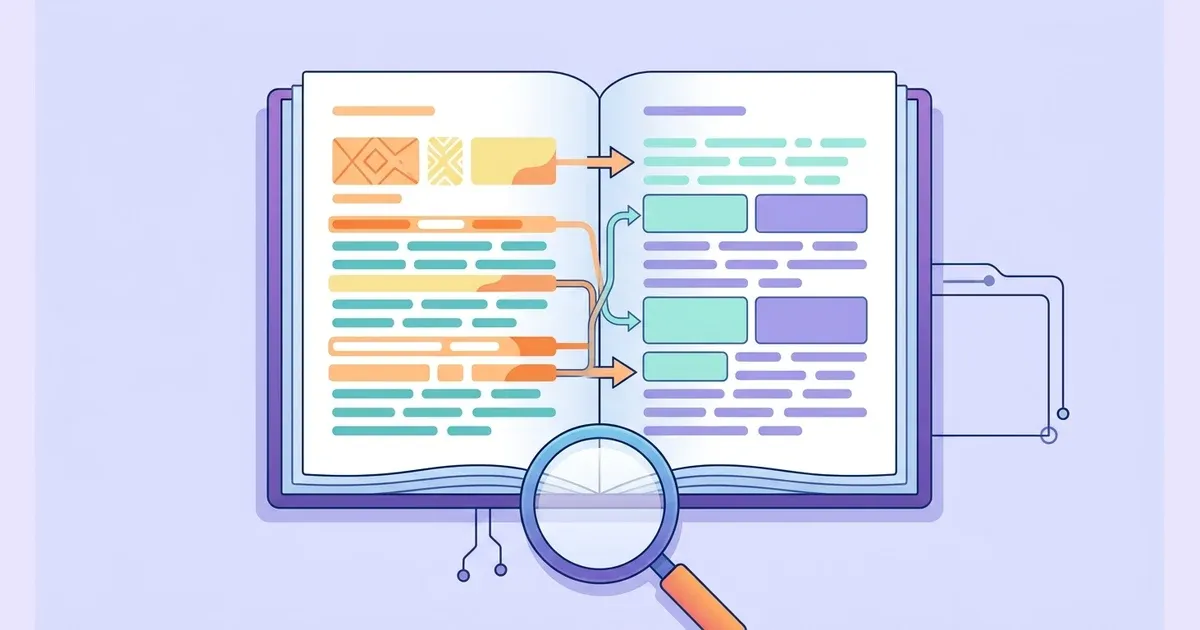
A diff checker shows exactly what changed when you compare two texts — which lines were added, which were removed, and which were edited — instead of making you scan both documents by eye. This guide explains how to run a comparison, how to read the result, and the settings that decide whether the output is signal or noise.
It works for source code, configuration files, SQL migrations, contracts and prose, and the comparison runs entirely in your browser. Before comparing two JSON payloads, normalise both sides with the JSON formatter so indentation is not reported as a change; if the text arrives Base64-encoded, decode it with the Base64 encoder and decoder first.
01What a diff actually compares
Diffing is not a character-by-character equality check. A diff tool computes the shortest edit script between the two sides — the smallest set of line insertions and deletions that turns one version into the other — and reports those insertions and deletions: lines present only on the left are removals, lines present only on the right are additions, and everything else is context. Git uses the same problem statement behind its default myers diff algorithm.
That is why a small edit in a long file produces a small diff even though the two documents differ in hundreds of characters — only the changed lines are marked. Two consequences matter in practice:
- A moved block looks like a delete plus an add, because the algorithm compares positions rather than intent.
- Formatting changes — re-indentation, line-ending changes, trailing whitespace — show up as real differences unless you tell the tool to ignore them.
02Compare two blocks of text
- Paste the original into Original — The left pane is the reference version. You can paste, type, or upload a file with the Upload button.
- Paste the revised version into Modified — The right pane holds the new version. Both panes accept large pastes and file uploads.
- Press Compare — The result panel marks removals in red and additions in green, and the summary reports how many blocks changed and how many lines were added or deleted.
- Jump between changes — Use Previous and Next to move through change blocks instead of scrolling. The counter (for example, "3 changes · 2 added · 1 deleted") tells you how much actually moved.
- Choose split or unified view — Split view aligns the two versions side by side. Unified view collapses them into a single patched column — the format reviewers expect, and the one you paste into a ticket.
- Tune granularity and filters — Switch between Line, Word and Char granularity, and turn on Ignore whitespace or Ignore case when the only differences are formatting.
- Swap, copy or export — Swap Sides reverses the comparison direction, Copy takes either pane out, and Export .patch downloads a standard unified patch — the format
git applyreads — that you can attach to a review.
03Line, word or character granularity
Line granularity is the default and the right choice for code and configuration, because whole lines are how reviews are written and how git reports changes.
Word granularity keeps the unchanged parts of an edited line visible, so a one-word change in a paragraph does not look like a rewritten sentence. Use it for prose, commit messages and translations.
Character granularity goes one level deeper and is useful for catching an invisible change: a swapped quote, a changed separator, or a non-breaking space that looks like a normal one. Once you know the exact pattern, the Regex Tester finds and replaces every occurrence across the file.
04Ignore whitespace and ignore case
Two files that look identical can still differ in ways you did not intend. Re-indenting a JSON file, switching CRLF to LF, or trailing spaces added by an editor all produce diff noise that hides the change you are looking for.
Ignore whitespace collapses runs of spaces and tabs and ignores leading and trailing whitespace when comparing lines, so a purely reformatted file reports no changes — the behaviour of diff -w and diff -b in GNU diffutils. Ignore case treats ALPHA and alpha as equal (diff -i), which is useful when comparing configuration keys or SQL keywords.
05Reading a unified patch
A single hunk from a unified diff: removals start with -, additions with +, and unchanged context lines with a space. In the hunk header, @@ -12,7 +12,8 @@ means the hunk starts at line 12 and covers 7 lines in the original and 8 in the modified file.
--- original
+++ modified
@@ -12,7 +12,8 @@ export function useUser(userId) {
   const [data, setData] = useState(null);
-  const [loading, setLoading] = useState(false);
+  const [loading, setLoading] = useState(true);
+  const [error, setError] = useState(null);
06What a change looks like
A changed configuration value
Input
timeout = 30
retries = 3
log_level = "info"
Output
  timeout = 30
- retries = 3
+ retries = 5
- log_level = "info"
+ log_level = "debug"
A refactor, with whitespace noise removed
Input
const total = items.reduce((sum, item) => sum + item.price, 0)
Output
const total = items
  .filter((item) => item.active)
  .reduce((sum, item) => sum + item.price, 0)
With Ignore whitespace on, only the added .filter line is reported; the broken-out .reduce lines are not treated as a rewrite.
Check whitespace before you debug logic
If every line is reported as changed, the cause is usually indentation or line endings, not the code. Turn on Ignore whitespace first.
07Why a diff shows changes you did not make
| What you see | Cause | Setting that fixes it |
|---|---|---|
| Every line changed after reformatting | Two-space vs four-space indent, or tabs vs spaces | Ignore whitespace |
| Every line changed for no visible reason | CRLF vs LF line endings | Ignore whitespace, or normalise line endings |
| Identical code flagged as different | Trailing spaces added by an editor | Ignore whitespace |
| A constant renamed everywhere | A case-only change | Ignore case when you only want structural edits |
| A block appears deleted and re-added | The code was moved | Read the unified view before assuming a rewrite |
If neither side is under version control, a browser-based comparison is the only option. See how to format, validate and minify JSON for the cleanup step that removes most diff noise before you start.
08Sources
- GNU Diffutils Manual — Unified Format (accessed 2026-10-10)
- GNU Diffutils Manual — Detailed Description of Unified Format (accessed 2026-10-10)
- GNU Diffutils Manual — White Space (accessed 2026-10-10)
- POSIX diff — Shell and Utilities (accessed 2026-10-10)
- Myers, An O(ND) Difference Algorithm and Its Variations (1986) (accessed 2026-10-10)
- git diff — Git Reference (accessed 2026-10-10)
- git apply — Git Reference (accessed 2026-10-10)
- gitattributes — Git Reference (accessed 2026-10-10)
- git-config — diff.algorithm (accessed 2026-10-10)
Frequently asked questions
Is a diff checker the same as git diff?
The comparison is the same and the output matches the [unified diff format](https://www.gnu.org/software/diffutils/manual/html_node/Unified-Format.html) that [git diff](https://git-scm.com/docs/git-diff) prints. git diff works on files inside a repository, while this tool compares any two blocks of text, including content that is not in version control.
Can I compare two JSON files?
Yes, but if they differ only in formatting, format both sides first or turn on Ignore whitespace — otherwise every re-indented line is reported as a change.
Does the tool detect moved lines?
No. A moved block is reported as a deletion plus an addition, because line diffing compares positions. This matches the git model and is what most reviewers expect.
How large a text can I compare?
There is no server limit, but diffing runs in the browser. Files up to a few megabytes compare smoothly; for very large logs, filter by time range first.
Can I undo a comparison?
Swap Sides reverses the direction and Clear All empties both panes. The comparison itself is not stored.
Is my text uploaded?
No — both panes and the comparison stay in your browser.
Related articles
- Format, validate and minify JSON
Clean up a payload before you compare it.
- Compress images without losing quality
Formats, quality settings and common mistakes.
Related tools
- Diff Checker
Side-by-side and unified text comparison.
- JSON Formatter
Normalise JSON before diffing.
- Regex Tester
Match and replace patterns in text.
- Base64 Encoder / Decoder
Inspect encoded payloads.